
How to Update a Dimsport New Genius
If your New Genius has been sitting, is due for a software refresh, or is asking for database updates before a job, this is the clean step-by-step update path through FlashPoint.
Quick answer: plug the New Genius into AC power and your computer, open FlashPoint, go to NewGenius > System > Automatic, accept the license prompts, allow DSupdate to run, then allow the online database update if prompted so the newest ECU protocols are installed.
Before you start
- Plug the New Genius into AC power first.
- Then connect it to your computer.
- Leave the tool connected during the whole update.
- Do not unplug it or close the software while the update is running.
Step-by-step update procedure
- Open FlashPoint.
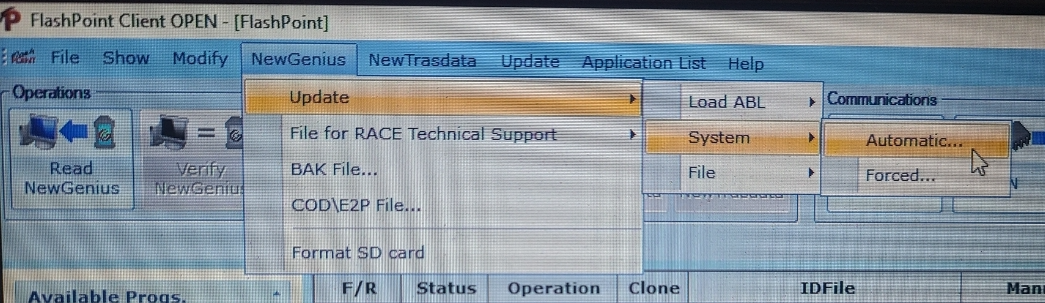
- On the top menu, select NewGenius, then go to System, then choose Automatic.
NewGenius > System > Automatic

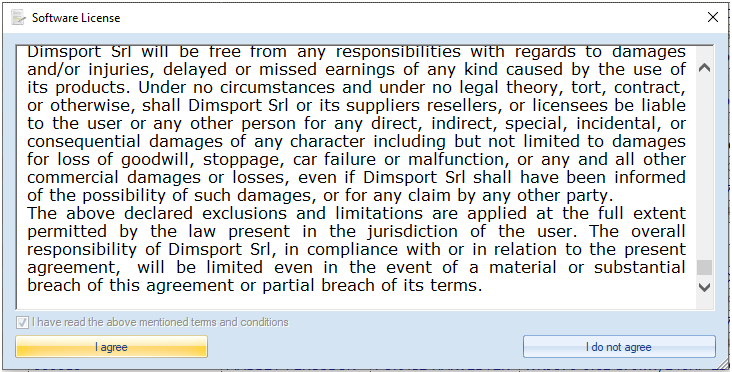
FlashPoint update path: NewGenius, then System, then Automatic. - When the software licensing window appears, check the box and click I agree.
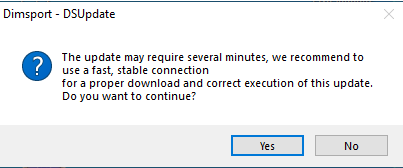
Accept the software license to continue the update. - If DSupdate asks to run, click Yes.
Allow DSupdate to run when it prompts. - Wait while the New Genius updates. Do not touch anything during this stage. The tool will update its software components automatically.
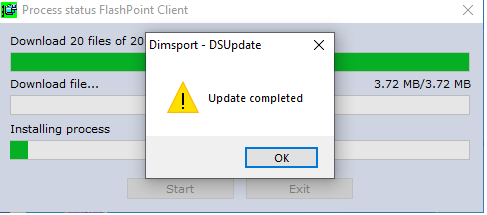
- When the update completes, click OK. Dimsport may open a letter or summary showing what was updated.
Update complete screen. - Open FlashPoint again if needed.
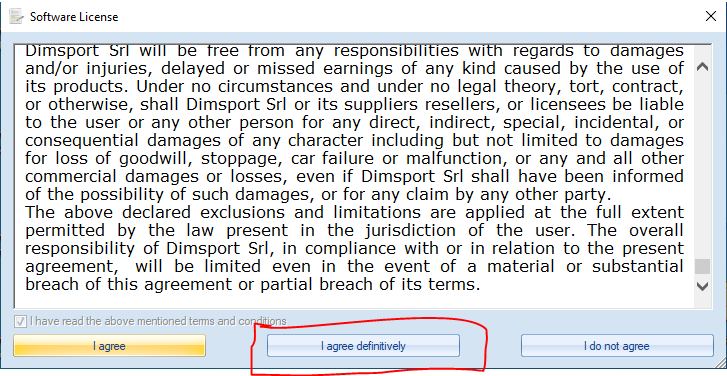
- If the software license prompt appears again, select I agree definitively.
Use the definitive acceptance prompt when FlashPoint opens again. - If you get the message to run the online update of the database, click Yes. This imports the newest ECU protocols into the software.
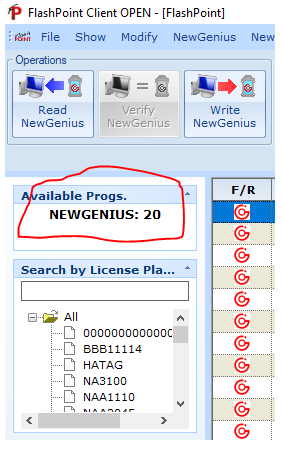
Run the online database update so the newest ECU protocols are imported. - After the database update completes, confirm the tool is back online and ready to use inside FlashPoint.
After the updater finishes, you should see New Genius 20 back on the left side.

What to watch for after the update
Normal result
- FlashPoint opens normally after the update.
- The license prompts are accepted and cleared.
- The online database updater finishes without errors.
- The New Genius shows back up in the software ready for use.
If the tool has been sitting
- If a New Genius sits for a while, its internal time can drift out of sync.
- That can lead to a white screen when trying to read an ECU.
- A good habit is to update the New Genius the night before using it if it has been sitting for more than a week.
Need help from TM AG?
If the update hangs, the database update fails, or the New Genius still goes to a white screen afterward, send TM AG a screenshot of the message, what version prompt you saw, and whether the tool had been sitting unused. That makes it easier to tell whether the issue is a simple update step, a time-sync problem, or something deeper with the tool.